
Why does IPTV lag when your broadband seems fast enough? The cause could be your connection, the device playing the stream or the server sending it. Lag means playback arrives late or becomes sluggish; buffering is a pause while more data loads, while freezing is a picture that stops moving. These symptoms overlap, so a few controlled checks are more useful than changing everything at once.
Next step: see how the 24-hour IPTV free trial works, or compare our IPTV subscription plans and UK prices. New to Phoenix 4K? Start with our UK IPTV subscriptions overview.
Whether you already have a service or are comparing an IPTV subscription UK, test with the device and connection you intend to use. This guide explains seven common causes and how to spot them without spending money first.
7 Common Causes of IPTV Lag
1. Slow or unstable internet
A stream needs a steady flow of data, not just an impressive headline broadband speed. As a practical starting point, allow about 15 Mbps for HD and 25 Mbps for 4K per stream; actual needs vary with compression and picture quality. Short drops, packet loss and fluctuating speeds can still interrupt playback when an average speed test looks healthy.
Quick check: Run a speed test beside your TV while the problem is happening, and look for inconsistent results as well as low speed.
2. Weak Wi-Fi or a TV far from the router
Walls, distance and interference can weaken the signal reaching your television. A phone beside the router may work perfectly while a TV upstairs struggles. Ethernet is usually more stable because it removes the wireless link from the equation. If a cable is impractical, try moving the router into an open position or bringing the streaming device closer.
Quick check: Temporarily connect by Ethernet, using a compatible adapter if needed, and compare playback with Wi-Fi.
3. Busy evening hours
Your home connection is shared between devices. Downloads, cloud backups and several simultaneous streams can leave less bandwidth available for IPTV. Your broadband line or wider network may also become busier in the evening. A service that works at lunchtime but buffers after dinner therefore needs testing at the time you actually watch.
Quick check: Pause other household downloads and streams, then compare a daytime test with an evening test.
4. An older or underpowered device
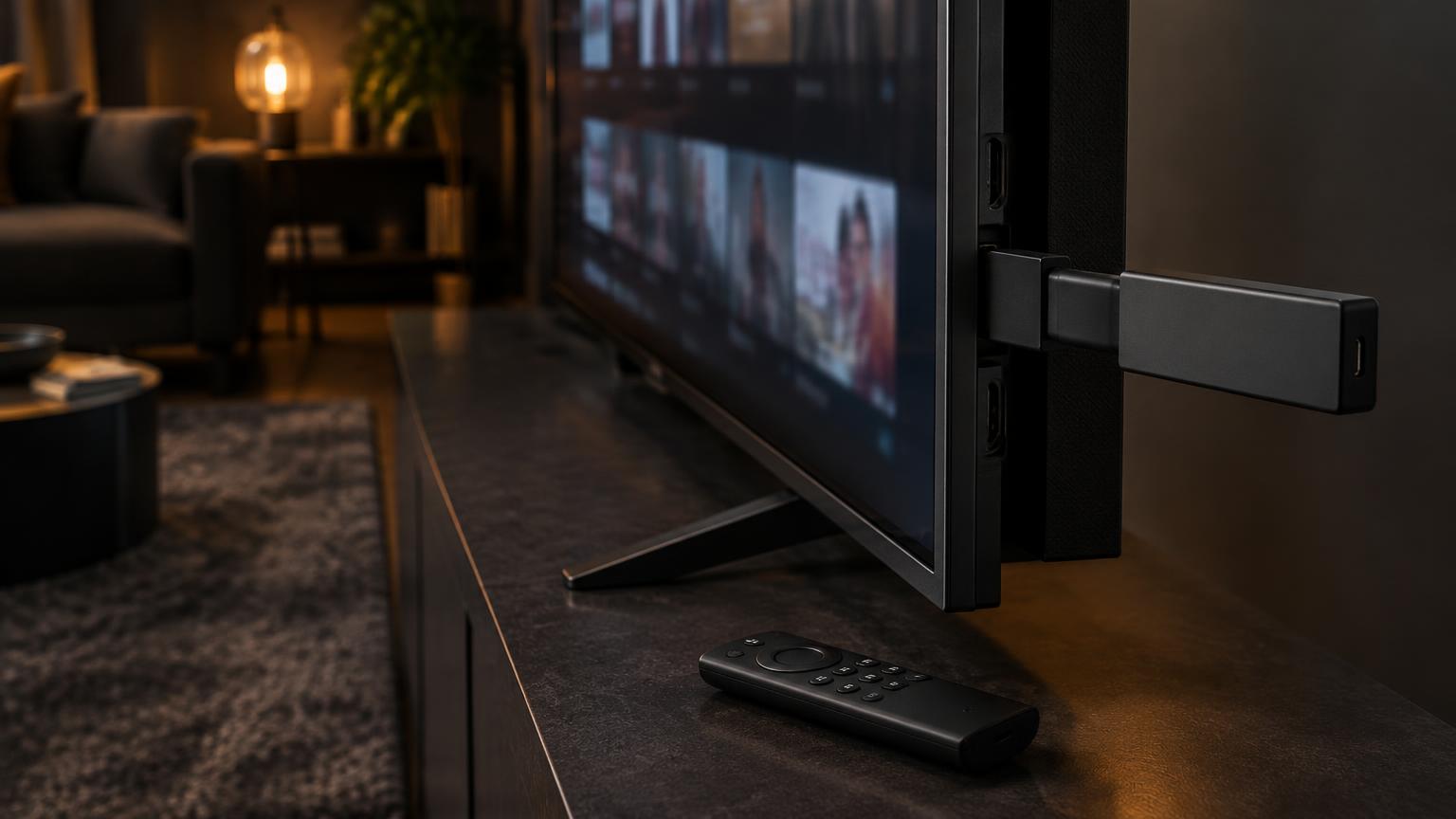
An older television or streaming stick may struggle to decode a demanding stream, even with fast broadband. Low storage, background apps and overheating can make matters worse. A Firestick Lite has less performance headroom than newer 4K or 4K Max models, but a newer device cannot repair a poor connection or a troubled server. Keep ventilation clear and check available storage before buying anything.
Quick check: Try a lower picture quality or another device on the same network and see whether freezing stops.
5. A full cache or an outdated player app
Temporary app files can build up, and older player versions may contain bugs or compatibility problems. Clear the cache through your device's app settings and install available player and system updates. Cache is not the same as app data: clearing data may remove your login or playlist, so keep those details safe before taking that separate step.
Quick check: Restart the updated player after clearing its cache, then replay the same stream.
6. A VPN adding delay
A VPN sends traffic through an extra server, which can add latency or reduce download speed. A distant or busy VPN endpoint may make IPTV lagging worse. It can sometimes improve a particular network route, but that is not proof that your broadband provider is deliberately slowing streaming. Follow applicable laws and service terms, and do not disable a VPN required by your workplace or security policy.
Quick check: If safe and permitted, compare with and without the VPN, or try a nearer endpoint.
7. An overloaded provider server
The source server can become busy or suffer a fault. This may cause IPTV freezing across several devices even when other streaming apps work. One affected stream may indicate a source-specific problem rather than a service-wide outage. Report when it happens, which device you use and what you have already tested; these details are more useful than assuming every pause is your Wi-Fi.
Quick check: Compare several streams and devices, then ask support whether there is a known service issue.
Is It Your Connection, Your Device or Your Provider?
Start another streaming app on the same device. If both struggle, your connection or device is a sensible place to investigate. Then test IPTV on another device using the same home network. If that works, focus on the original player's settings, storage and updates.
If IPTV struggles on both devices but other apps remain smooth, the provider or the route to its server may be involved. Note whether the issue only appears at peak times. None of these tests proves the cause alone; repeat them while the fault is visible and change one thing at a time.
A 5-Step Quick Checklist
- Restart the router and device. Let the broadband connection fully reconnect before testing.
- Use Ethernet. A temporary cable test helps rule out wireless interference.
- Close other streaming devices. Pause large downloads and backups too.
- Clear the app cache and update the app. Avoid deleting saved account details unnecessarily.
- Run a speed test. Test near the streaming device during your normal viewing hours.
For a more detailed walkthrough, read how to fix IPTV buffering. Keep a note of which step changes the result so you can explain the problem clearly to support.
What to Look for in a Provider
Look for a trial you can use on your own connection and device, clear support contact details and a written refund policy you can read before paying. Check any eligibility conditions rather than assuming every purchase is refundable. Be wary of promises that streaming can never pause: home networks, devices and remote servers all affect the result.
Our free 24-hour trial lets you check your setup before choosing a plan. Test during a busy evening as well as a quieter period, and ask about compatible apps and any separate player licence. Only use services with permission to distribute the content you watch.